Study Planner Template: Sessions, Topics and Planned vs Done Time
Study planner template with five fields that survive week 3: date, class, topic, planned time and done time, plus one filled example week.
By Ultimate Student Planner by Cosmo Suite · Editorial policy
Published · 8 min read
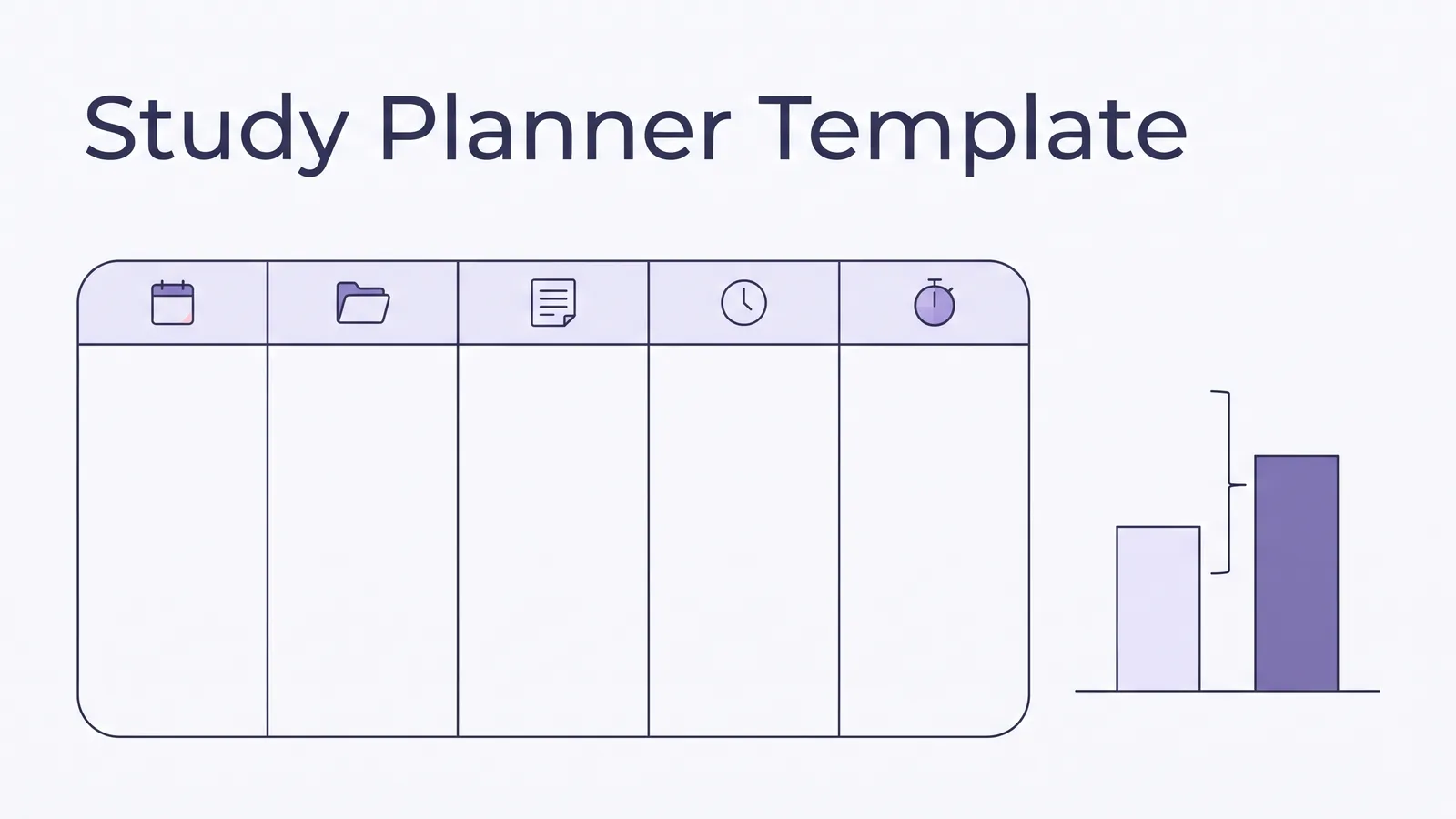
It's week 3, and the study planner you set up in week 1 is still open in a tab you have not touched since the first Monday. Nothing in it is wrong. It stopped matching your week.
Ultimate Student Planner is a Google Sheets and Excel planner by Cosmo Suite (ultimatestudentplanner.site). Its Study Plan tab holds a student planner spreadsheet that records each session. The template below also works in a notebook, a document or any sheet.
A study planner template is one row per study session, carrying a date, a class, a topic and two time numbers. Get those five fields right and the plan survives a missed Tuesday. Get them wrong and you own a page of good intentions with dates on it.
The Short List
- One session per row: date, class, topic, planned time, done time.
- The topic names something you can start, not a subject.
- Planned time is an estimate. Done time is the record. Compare them.
- A missed session moves to a new row. Nothing gets deleted.
Why Most Study Planner Templates Last Two Weeks
A template fails for one reason before any other: the row does not tell you what to do when you sit down. "Study biology" is a subject rather than a session, so on a Wednesday night you open the planner, read it and close it again, because it handed you nothing to begin.
The second failure is quieter. A template that asks for a date and a subject shows you a plan. It cannot show you whether the plan was any good. You cannot tell whether a 40-minute block was too long, too short or about right, because nothing recorded what actually happened.
Ohio State's Dennis Learning Center makes the estimating point directly: "Estimate the amount of time" and "Overestimate instead of underestimate." Either instruction only works when the estimate and the reality sit on the same row.
Cornell's Learning Strategies Center goes further and tells students to double their time estimates, because a first number is usually low. A done-time column shows you which of your own numbers to double, and by how much.
So the template is a small record with five fields, and the last one is the field most templates leave out.
Study Planner Template, Session by Session
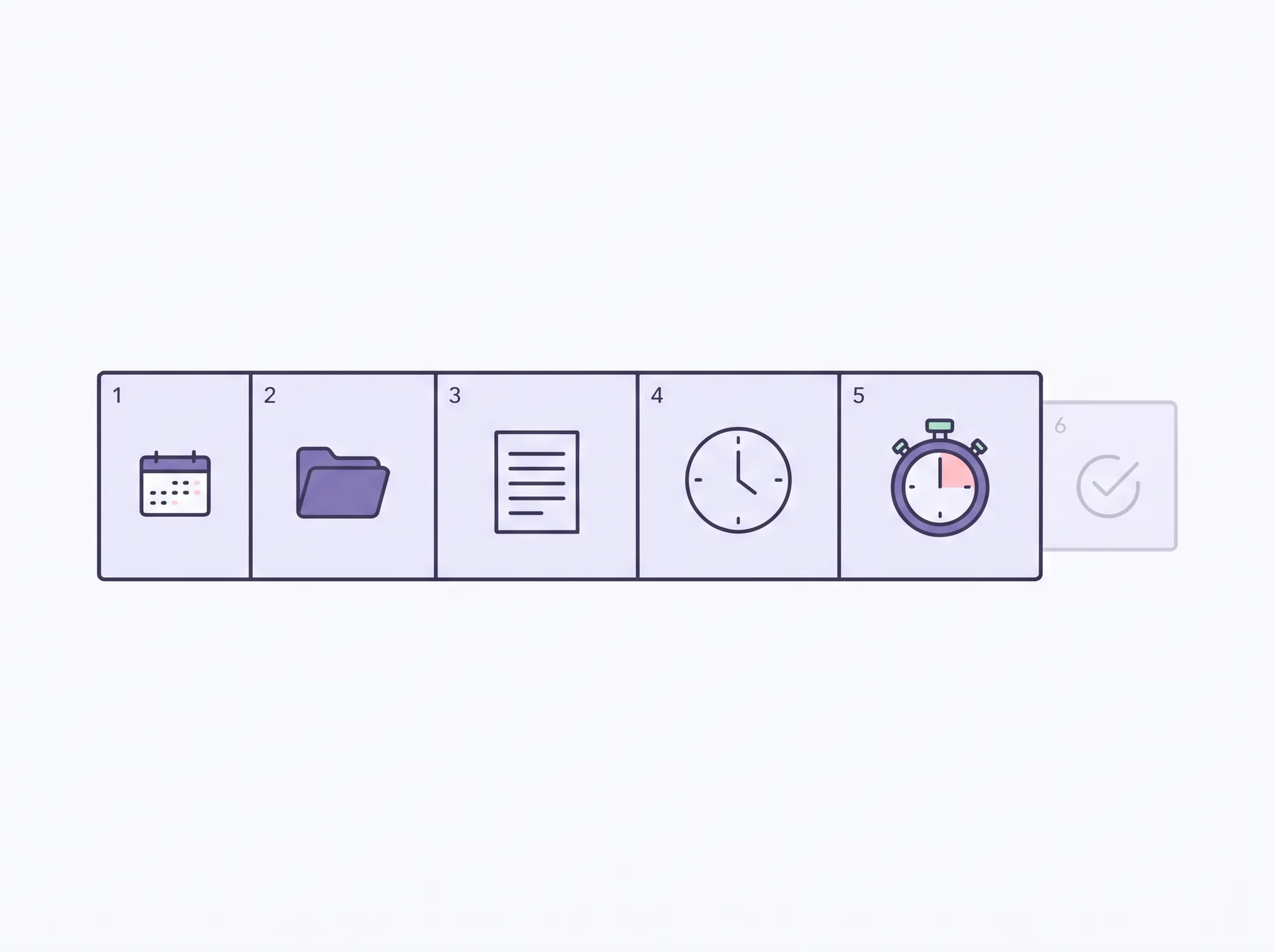
The row looks like this. Five fields, one line per session.
| Field | What you type | Why the row needs it | Example |
|---|---|---|---|
| Date | The day you plan to sit down | Puts the session in a week you can see | Tue 14 Oct |
| Class | The course name | Tells you which notes to open | Biology 201 |
| Topic | The next action, not the subject | Gives you a place to start | Cell transport notes, section 3 |
| Planned time | Your estimate in minutes | Sets the size of the block | 40 min |
| Done time | What you actually spent | Shows whether the estimate held | 55 min |
That is the whole template: five columns, with the fifth holding a record of what happened rather than a plan for it.
A topic is a thing you can begin without deciding anything first, and this field does most of the work. "Read the cell transport notes and mark the two terms you cannot explain" is a session. "Biology" only reminds you that you have a biology class.
Planned time is an estimate you make before you start. Done time is what the clock says when you stop. Neither column is much use alone. Side by side, they show how far off your guesses run, and whether to plan shorter or longer blocks next week. A row planned at 30 minutes and done at 30 is a working estimate. A row planned at 20 and done at 70 is a topic that hid a step.
A sixth field is optional: a short status of done, moved or dropped. It saves you re-reading a row to work out whether it happened.
Planned Time vs Done Time, and What the Gap Tells You
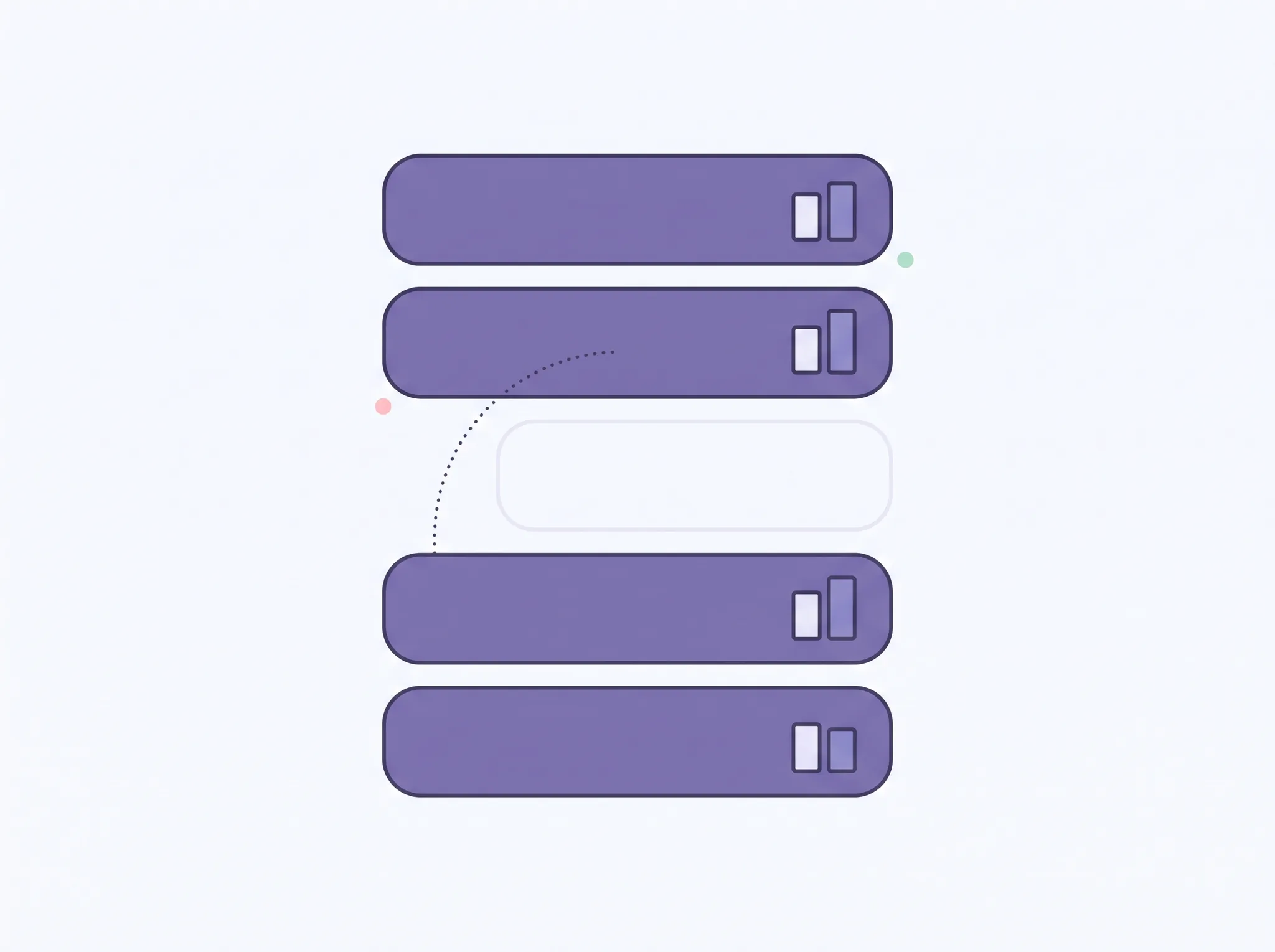
The gap between the two columns is the part of the template you learn from. It measures how close your estimate was, and a session that ran long and finished the topic is as good a result as one that matched.
Three patterns show up in the first two weeks, and each has its own fix.
Planned 40, done 20, topic half finished. The estimate was fine and the topic was too big. Split the topic into two rows on two dates. This is the most common pattern, and the fix is in the topic field.
Planned 30, done 30, topic finished. The estimate was right, so leave the template alone and keep planning sessions at that size.
Planned 20, done 70. The topic hid a step you did not know about, such as finding the reading or re-watching a lecture. Write that step into the next row so it does not surprise you twice.
Cornell's advice to double estimates is a starting correction, not a permanent one. After two weeks of done times you have your own numbers, and you can use those instead. Consider a student whose first estimate for a reading session is 25 minutes and whose done times settle at 50. The template has already told them what their own multiplier is.
If you would rather keep the record in a planner file you own than in a notebook, the fields are the same.
The University of Toronto Mississauga's academic skills centre frames the same review as a question: "Were you realistic about the amount of time you budgeted for your tasks?" Your done-time column answers it without guessing.
One Example Week, Filled In
Here is a fictional week for one course, invented to show the fields in use. The class, topics and minutes are made up.
| Date | Class | Topic | Planned | Done | Status |
|---|---|---|---|---|---|
| Tue 14 Oct | Biology 201 | Cell transport notes, section 3 | 40 | 55 | Done |
| Wed 15 Oct | Biology 201 | Label the membrane diagram from memory | 20 | 20 | Done |
| Thu 16 Oct | Biology 201 | Practice questions, chapters 4 and 5 | 45 | 25 | Moved |
| Sat 18 Oct | Biology 201 | Practice questions, chapters 4 and 5 | 30 | 35 | Done |
| Sun 19 Oct | Biology 201 | Re-read the two missed question types | 25 | 20 | Done |
Read the third and fourth rows together. The Thursday session ran 25 minutes against a 45-minute estimate and did not finish, so the row was not deleted: it moved to Saturday with the same topic, and the Saturday session finished it.
A plan that gets edited keeps working, while a plan that gets abandoned leaves a gap you rebuild from memory.
One more detail sits in the last row. Sunday's session repeats Thursday's topic, named precisely enough to pick up where it stopped, which is why it took 20 minutes instead of starting over.
How the Ultimate Student Planner Handles This
We make the Ultimate Student Planner, so weigh this section accordingly. It is a student planner spreadsheet for Google Sheets and Excel whose Study Plan tab is built from these fields. In the planner's own words: "A month calendar, a weekly planner and a study plan."
The Study Plan tab carries a date, class, topic, planned time and done time on each row, plus a done tick. A session you did not finish goes to a "to reschedule" list and stays visible there until you move it. There are no streaks, so a missed week resets nothing.
Two limits are worth stating. The planner does not sync with a school portal or a calendar app, and it does not send reminders, so the Sunday review stays yours. It also does not tell you how long a topic should take. That number comes from your own done times.
If you want the weekly habit around the template, the study planner guide to planning sessions by class and topic covers it. If you are starting from a stack of syllabi and no dates yet, the guide to building a study plan you can pick back up starts one step earlier. The student planner guide shows where the study plan sits next to the due-date list.
What to Check Before You Reuse the Template Next Week
Five checks take about five minutes at the end of the week, and they are worth doing before you copy the template forward.
- Every row has a topic you could start. If a row still says a subject, rewrite it as an action you could begin on a Wednesday night.
- Done time is filled in for every finished row. An empty done column turns the template back into a calendar.
- Moved rows have a new date. Without one, the work quietly drops off the list.
- The gap is read, not judged. Two rows where you ran long tell you to plan longer blocks next week.
- The next week is short. Five to eight rows you will actually do beat twenty you will not.
Keep the template small enough to fill in on a Sunday night. Five good rows beat twenty you will not open.
Calculation note: every class, topic and minute count in this guide is fictional. They are made up to show the shape of a filled template, and none comes from a real student or course.
Methodology: the five fields and the planned-versus-done comparison are this guide's own reading of how a session record works. The university pages support the estimating and review principles. None of them prescribes this exact row.
Our editorial policy sets how posts are written and checked, and you can read more about the team behind this site or contact us with a correction.
Sources checked 21 Nov 2026. Each page was read in full on that date.
- Cornell Learning Strategies Center, Guidelines for Creating a Study Schedule.
- Ohio State Dennis Learning Center, The 5-Day Study Plan.
- University of Toronto Mississauga, Six Steps to Create a Personalized and Effective Study Plan.
Frequently asked questions
Does this study planner template work for high school?
Yes. The five fields work wherever you sit down to study a subject on a date. High school classes often add daily homework that no plan lists, so add a row for it as it comes. Change the example class and topics to match your own timetable.
What should a study planner template include?
Five fields per row: date, class, topic, planned time and done time. Add a short status such as done, moved or dropped. The topic names one action you can start, and the two time fields let you compare your estimate with what actually happened.
How is a study planner template different from a calendar?
A calendar shows when you have time. The template shows what you will do in that time and whether it happened. Keep both. The calendar holds classes and shifts, and the template holds one row per study session.
How long should each study session be?
Start with a 30 to 45 minute estimate and see what your done times say. Cornell's Learning Strategies Center advises keeping a session to no more than two hours on one course at a time, then taking a break. Your own done times replace the guess after about two weeks.
What do I do with a session I did not finish?
Move it to a new row with a real date and a smaller topic. Do not delete the original. A moved row keeps the work visible, and a smaller topic is usually what the session needed in the first place.
How do I estimate study time if I have never tracked it?
Guess once, then correct with your own records. Ohio State's Dennis Learning Center advises estimating the time and overestimating rather than underestimating. Cornell suggests doubling a first estimate. After two weeks of done times you can use your own average instead.
Can the Ultimate Student Planner run this template for me?
Partly. Its Study Plan tab has the date, class, topic, planned time and done time fields, plus a done tick and a list for sessions to reschedule. It does not send reminders or sync with a school portal, so the weekly review is still yours.
Sources
Keep reading

Study Planning
Study Planner: Plan Sessions by Class and Topic, and Reschedule What You Miss
A study planner guide to map sessions by class and topic, handle missed blocks, and build a weekly plan you can restart when school gets busy.
· 7 min read
Study Planning
How to Create a Study Plan You Can Pick Back Up After a Bad Week
How to create a study plan in four stages: classes, due dates, weekly slots, and a reschedule list that gives a missed session a clear place to go.
· 7 min read
